Status: CURRENT — SIMPLE WORKAROUND Last reviewed: 31 August 2026 Applies to: Forza Horizon 5 on Windows when Alt+Tab causes the game/menu to stop responding properly
This still appears to be a useful workaround. It is not really a Thrustmaster T300RS fix — the wheel just happened to be what made me Alt+Tab in and out of Forza constantly while I was setting everything up.
I was given a Thrustmaster T300RS wheel and, while configuring it for Forza Horizon 5, I kept Alt+Tab‘ing out of the game to change settings.
Every now and again I’d return to Forza and end up stuck in the menu or unable to get the game responding properly.
After a bit of hunting around, I found a stupidly simple workaround: flick the game into windowed mode and then back to fullscreen.
The shortcut is:
Alt + Enter
Press it once to switch display mode, then press it again to switch back.
For me that was enough to wake the game back up and let me get out of the menu.
So basically:
Alt + Tab out of Forza
        ↓
Come back and menus/input are cactus
        ↓
Alt + Enter
        ↓
Windowed mode
        ↓
Alt + Enter again
        ↓
Fullscreen again
        ↓
Game behaves itself :)
Is this still a thing?
Yep, or at least variations of it are.
Forza Horizon 5 players have reported fullscreen/window-focus problems since launch, including the game behaving differently after Alt+Tab. Toggling between windowed and fullscreen has repeatedly been used as a workaround.
There were still player reports in 2026 where Alt + Enter and temporarily running FH5 in windowed mode helped get around loading/display weirdness.
Important: this doesn’t mean every stuck-menu problem has the same cause. If Alt+Enter fixes it, fantastic. If it doesn’t, don’t start reinstalling your Thrustmaster drivers just because this page mentions a T300RS.
If Alt + Enter doesn’t fix it
Try the boring stuff before tearing your sim rig apart:
Alt+Tab out and back into the game again.
Switch Windowed/Fullscreen from Forza’s video settings.
Click directly inside the game window to make sure it has focus.
Restart Forza if the input state is completely borked.
If the problem only happens with the wheel connected, then start checking the Thrustmaster control panel, firmware and bindings.
But for the particular problem I had, two presses of Alt + Enter saved me from restarting the whole bloody game every time 😀
Status: CURRENT — WITH CAUTION Last reviewed: 31 August 2026 Applies to: Current Nextcloud, including Docker/LinuxServer installs and data directories on filesystems that cannot represent normal Unix permissions
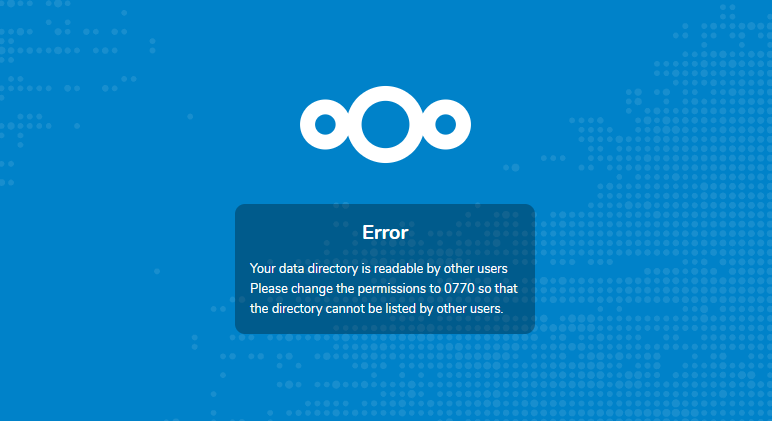
The check_data_directory_permissions option still exists in current Nextcloud. However, Nextcloud’s own documentation says disabling this check is intended for rare setups where the underlying storage cannot correctly represent the expected permissions. In normal installs, fix the permissions instead of turning the check off.
This is a common Nextcloud first-run error, especially after moving the data directory onto another filesystem or NAS.
In my case I had moved Nextcloud’s data onto a Windows NAS. Nextcloud looked at the mounted filesystem, couldn’t see the Unix-style 0770 permissions it expected, and basically went:
NOPE. GIVE ME 0770.
The annoying bit is that some filesystems — particularly SMB/CIFS mounts — don’t necessarily expose Unix permissions in the same way a normal local Linux filesystem does. So chmod 0770 may either do nothing useful or report something that doesn’t really represent what the NAS is enforcing.
Do not disable the check first
This is the important bit that my original article was missing.
Nextcloud’s current documentation says check_data_directory_permissions defaults to true and that disabling it is intended for rare environments where permissions cannot be corrected normally. For regular installations, Nextcloud explicitly discourages changing the flag.
So before bypassing anything, check whether you actually have a normal permission problem.
1. Check where the data directory actually is
For a normal install, check your Nextcloud config:
If you’re using the LinuxServer Nextcloud image, the current recommended layout maps persistent storage to:
/config  # Nextcloud configuration/application state
/data    # User data
Make sure you are fixing the storage Nextcloud is actually using and not chmod’ing some completely unrelated directory while Nextcloud watches in disappointment.
2. If it’s a normal Linux filesystem, fix the permissions
On a normal local Linux filesystem, don’t bypass the check just because it’s easier.
The web/PHP process needs genuine access to the data directory. The exact owner depends on your install, but a traditional Debian/Ubuntu Nextcloud install commonly runs as www-data.
For example, after confirming the correct path and ownership for your setup:
Don’t blindly run that on a giant existing NAS share. Recursive ownership changes can ruin permissions for other services/users. Work out who actually owns the files first. A five-second copy/paste fix can create a really shit afternoon.
3. When disabling the check actually makes sense
The bypass can be reasonable when all of these are true:
The data directory is on a filesystem/mount that cannot represent the expected Unix mode properly — SMB/CIFS is a common example.
Nextcloud’s process really can read, write, create, rename and delete files in the directory.
The storage itself is securely restricted even though Nextcloud cannot verify that restriction through Unix mode bits.
You understand that disabling this setting skips a safety check; it does not magically fix access.
If Nextcloud can’t actually write to the share, changing this flag won’t fix shit. You’ll simply get past one warning and hit a different error five minutes later.
Preferred method: use occ
Rather than manually editing PHP, current Nextcloud provides the occ config:system:set command.
Much cleaner than opening config.php, adding a comma in the wrong place and discovering that PHP has opinions.
Manual config.php method
The old method is still valid if occ isn’t available yet — for example during an installation that hasn’t completed.
Regular installation
sudo nano /var/www/nextcloud/config/config.php
LinuxServer Docker
The LinuxServer config still lives inside the container at:
/config/www/nextcloud/config/config.php
You can open a shell:
docker exec -it nextcloud /bin/bash
Then edit:
nano /config/www/nextcloud/config/config.php
Add this inside the $CONFIG array:
'check_data_directory_permissions' => false,
Save it and reload Nextcloud.
Docker image matters: that /config/www/nextcloud/config/config.php path is for the LinuxServer image. Other Nextcloud images use different paths — the official image commonly keeps its application under /var/www/html. Don’t wander into a random container path because Google showed you a 2022 LinuxServer guide. Yes, including this one 😅.
If you’re using a Windows NAS, consider External Storage instead
This is the other thing I’d do differently today.
If your goal is simply to make files already sitting on a Windows/Samba NAS available inside Nextcloud, you don’t necessarily need to make that share Nextcloud’s primary data directory.
Nextcloud has an External Storage app with native SMB/CIFS support. You can connect the NAS as a folder inside Nextcloud instead.
Current Nextcloud recommends the PHP smbclient module where possible because it is more reliable than falling back to the standalone smbclient executable.
That architecture looks more like:
Nextcloud primary data
        ↓
normal local/Docker storage

Existing Windows NAS
        ↓
Nextcloud External Storage
        ↓
SMB/CIFS
For a lot of homelab setups that’s cleaner than making Nextcloud’s entire data directory depend on a network share and then spending the weekend arm-wrestling CIFS permissions.
How to turn the check back on
If you later move back to storage with proper Unix permissions, put the safety check back:
It does not make a publicly readable data directory safe.
It does not fix ownership or UID/GID mismatches.
It simply tells Nextcloud to stop rejecting the directory because its permission-mode check doesn’t look the way Nextcloud expects.
Think of it as telling Nextcloud, “yes mate, I know the permission bits look weird; I’ve checked the storage myself.” Not “YOLO, permissions are optional now.”
Old article verdict
The actual setting from my 2022 fix is still completely real:
'check_data_directory_permissions' => false,
What changed is the recommendation around it. My old article made it sound like the easy fix was automatically the right fix. Current Nextcloud documentation is much clearer: use this for weird storage where normal permission correction genuinely isn’t possible; otherwise fix the underlying permissions.
So past me wasn’t wrong. Past me was just a little too excited about finding the switch that made the angry red box fuck off 😀
Status: CURRENT — 2026 CLEANUP Last reviewed: 31 August 2026 Applies to: Debian/Ubuntu Linux mounting an SMB/CIFS share from Windows, TrueNAS, Samba or another NAS
The basic /etc/fstab method from my original guide is still perfectly useful. The big changes are tightening the old 0777 permissions, putting credentials somewhere sensible, and using systemd’s network/automount options so a slow or unavailable NAS doesn’t make boot unnecessarily cactus.
One of the first hurdles I hit when I started playing with Linux VMs was getting them to use storage sitting on my NAS.
Windows/Samba shares use SMB/CIFS, and Linux can mount them just like another filesystem. Once it’s in /etc/fstab, the VM can bring the share in automatically and applications can use a normal Linux path instead of knowing anything about SMB.
Basically:
//NAS/share
     ↓
mount.cifs
     ↓
/mnt/nas-share
     ↓
Linux apps / Docker / whatever other nonsense I'm running :)
1. Install cifs-utils
On Debian/Ubuntu:
sudo apt update
sudo apt install cifs-utils
cifs-utils provides the mount.cifs helper used by the normal Linux mount command and /etc/fstab.
2. Create a mount point
I now prefer /mnt for a system/NAS mount rather than /media, which is more commonly used for removable/user-mounted media.
sudo mkdir -p /mnt/nas-share
Call it whatever makes sense. If the share contains TV, movies or backups, use a name that future-you won’t have to decode at 2am.
3. Create a credentials file
Do not put the SMB username and password directly into /etc/fstab. It works, but now every local user that can read the file gets a free NAS password. Nice one.
Use the numeric values in fstab. Numeric IDs avoid relying on name lookup while the system is mounting filesystems during boot.
5. Test the SMB mount manually first
Before permanently touching /etc/fstab, test the exact share and credentials.
sudo mount -t cifs //NAS_OR_IP/SHARE /mnt/nas-share -o credentials=/etc/samba/credentials-nas,uid=1000,gid=1000,file_mode=0660,dir_mode=0770
Then:
findmnt /mnt/nas-share
ls -lah /mnt/nas-share
If that fails, fix SMB credentials, DNS/networking or share permissions before adding it to boot. Otherwise you’re just making a broken mount more persistent 😅.
Unmount the test:
sudo umount /mnt/nas-share
6. Add it to /etc/fstab
Back up fstab first because a typo here can make boot considerably more exciting than intended:
credentials=... — keeps the username/password out of fstab.
uid=1000,gid=1000 — presents files locally as owned by that Linux UID/GID.
file_mode=0660 — local presentation: owner/group read + write, no access for everyone else.
dir_mode=0770 — owner/group can access/write directories, no access for everyone else.
iocharset=utf8 — sensible filename character handling.
nofail — don’t fail the entire boot just because the NAS is unavailable.
_netdev — explicitly tells the init system this filesystem depends on networking.
x-systemd.automount — creates an automount so the share is mounted when first accessed rather than blocking boot waiting for it.
x-systemd.idle-timeout=10min — allows systemd to unmount it after ten minutes idle; the next access automatically mounts it again.
Don’t want the mount to idle-unmount? Remove x-systemd.idle-timeout=10min. I like automounting because NASes and networks occasionally decide to have a little fucking nap during boot, but a permanently busy application mount won’t normally become idle anyway.
Why I removed vers=3.0
My original fstab line explicitly used:
vers=3.0
That isn’t necessarily wrong, but I no longer pin a protocol version unless I have a reason to.
Modern CIFS clients can negotiate a suitable modern SMB dialect with the server. Hard-coding a version can become unnecessary baggage later when both ends support something newer.
If a particular old NAS needs a specific version, add it deliberately after checking what the server supports. Do not fall all the way back to SMB1 just to make an ancient box stop complaining — that’s a different flavour of cactus.
Why 0777 was a bit enthusiastic
The original guide used:
file_mode=0777,dir_mode=0777
Which basically says “everyone gets everything”. That made permission problems disappear very efficiently because permissions themselves had also disappeared 😂.
For a single-user VM I now prefer something like:
file_mode=0660
dir_mode=0770
Adjust them for your actual use case. If multiple Linux services need the mount, using a shared group and a deliberate GID is much cleaner than opening it to everybody.
Important: Linux mode bits are not your NAS ACL
This catches people constantly.
uid, gid, file_mode and dir_mode control how the SMB mount is presented to Linux locally. They do not override whatever permissions the NAS/Windows server applies to the SMB account.
If the NAS user only has read access, giving the mount file_mode=0777 does not magically make the server allow writes.
That’s why sometimes you can stare at chmod for half an hour and nothing changes. You’re arguing with the wrong bloody computer.
7. Validate fstab before rebooting
After saving /etc/fstab, reload systemd’s generated mount units:
sudo systemctl daemon-reload
Check the file for obvious problems:
sudo findmnt --verify --verbose
Then trigger the mount by accessing it:
ls /mnt/nas-share
findmnt /mnt/nas-share
If it works now, a reboot shouldn’t contain any horrible surprises.
That keeps SMB credentials and mount behaviour on the host instead of teaching five different containers how to connect to the same NAS. Fewer moving parts, fewer places for shit to break.