
Status: CURRENT — WITH CAUTION
Last reviewed: 31 August 2026
Applies to: Current Nextcloud, including Docker/LinuxServer installs and data directories on filesystems that cannot represent normal Unix permissionsThe
check_data_directory_permissionsoption still exists in current Nextcloud. However, Nextcloud’s own documentation says disabling this check is intended for rare setups where the underlying storage cannot correctly represent the expected permissions. In normal installs, fix the permissions instead of turning the check off.
This is a common Nextcloud first-run error, especially after moving the data directory onto another filesystem or NAS.
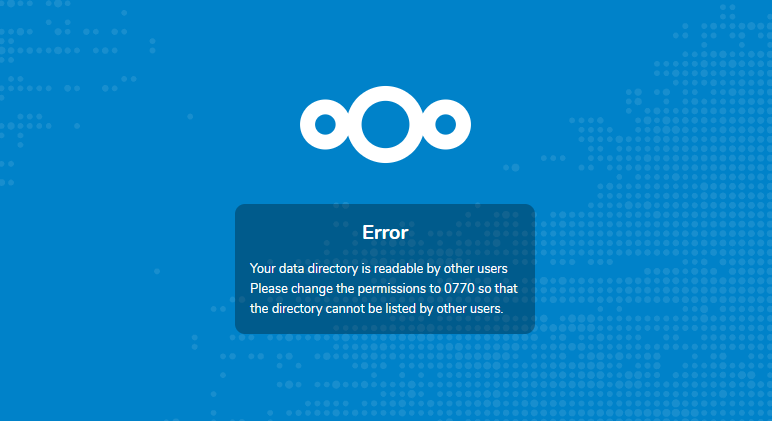
In my case I had moved Nextcloud’s data onto a Windows NAS. Nextcloud looked at the mounted filesystem, couldn’t see the Unix-style 0770 permissions it expected, and basically went:
NOPE. GIVE ME 0770.The annoying bit is that some filesystems — particularly SMB/CIFS mounts — don’t necessarily expose Unix permissions in the same way a normal local Linux filesystem does. So chmod 0770 may either do nothing useful or report something that doesn’t really represent what the NAS is enforcing.
Do not disable the check first
This is the important bit that my original article was missing.
Nextcloud’s current documentation says check_data_directory_permissions defaults to true and that disabling it is intended for rare environments where permissions cannot be corrected normally. For regular installations, Nextcloud explicitly discourages changing the flag.
So before bypassing anything, check whether you actually have a normal permission problem.
1. Check where the data directory actually is
For a normal install, check your Nextcloud config:
sudo grep -n "'datadirectory'" /var/www/nextcloud/config/config.phpFor a Docker container, you can also inspect its mounts:
docker inspect nextcloud --format '{{range .Mounts}}{{println .Source "->" .Destination}}{{end}}'If you’re using the LinuxServer Nextcloud image, the current recommended layout maps persistent storage to:
/config  # Nextcloud configuration/application state
/data # User dataMake sure you are fixing the storage Nextcloud is actually using and not chmod’ing some completely unrelated directory while Nextcloud watches in disappointment.
2. If it’s a normal Linux filesystem, fix the permissions
On a normal local Linux filesystem, don’t bypass the check just because it’s easier.
The web/PHP process needs genuine access to the data directory. The exact owner depends on your install, but a traditional Debian/Ubuntu Nextcloud install commonly runs as www-data.
For example, after confirming the correct path and ownership for your setup:
sudo chown -R www-data:www-data /path/to/nextcloud-data
sudo chmod 0770 /path/to/nextcloud-dataDon’t blindly run that on a giant existing NAS share. Recursive ownership changes can ruin permissions for other services/users. Work out who actually owns the files first. A five-second copy/paste fix can create a really shit afternoon.
3. When disabling the check actually makes sense
The bypass can be reasonable when all of these are true:
- The data directory is on a filesystem/mount that cannot represent the expected Unix mode properly — SMB/CIFS is a common example.
- Nextcloud’s process really can read, write, create, rename and delete files in the directory.
- The storage itself is securely restricted even though Nextcloud cannot verify that restriction through Unix mode bits.
- You understand that disabling this setting skips a safety check; it does not magically fix access.
If Nextcloud can’t actually write to the share, changing this flag won’t fix shit. You’ll simply get past one warning and hit a different error five minutes later.
Preferred method: use occ
Rather than manually editing PHP, current Nextcloud provides the occ config:system:set command.
Regular Debian/Ubuntu install
cd /var/www/nextcloud

sudo -E -u www-data php occ config:system:set check_data_directory_permissions --value=false --type=booleanLinuxServer Docker image
LinuxServer’s current Nextcloud image lets you run occ directly inside the container:
docker exec -it nextcloud occ config:system:set check_data_directory_permissions --value=false --type=booleanConfirm the setting:
docker exec -it nextcloud occ config:system:get check_data_directory_permissionsYou should get:
falseMuch cleaner than opening config.php, adding a comma in the wrong place and discovering that PHP has opinions.
Manual config.php method
The old method is still valid if occ isn’t available yet — for example during an installation that hasn’t completed.
Regular installation
sudo nano /var/www/nextcloud/config/config.phpLinuxServer Docker
The LinuxServer config still lives inside the container at:
/config/www/nextcloud/config/config.phpYou can open a shell:
docker exec -it nextcloud /bin/bashThen edit:
nano /config/www/nextcloud/config/config.phpAdd this inside the $CONFIG array:
'check_data_directory_permissions' => false,Save it and reload Nextcloud.
Docker image matters: that
/config/www/nextcloud/config/config.phppath is for the LinuxServer image. Other Nextcloud images use different paths — the official image commonly keeps its application under/var/www/html. Don’t wander into a random container path because Google showed you a 2022 LinuxServer guide. Yes, including this one 😅.
If you’re using a Windows NAS, consider External Storage instead
This is the other thing I’d do differently today.
If your goal is simply to make files already sitting on a Windows/Samba NAS available inside Nextcloud, you don’t necessarily need to make that share Nextcloud’s primary data directory.
Nextcloud has an External Storage app with native SMB/CIFS support. You can connect the NAS as a folder inside Nextcloud instead.
Current Nextcloud recommends the PHP smbclient module where possible because it is more reliable than falling back to the standalone smbclient executable.
That architecture looks more like:
Nextcloud primary data
        ↓
normal local/Docker storage

Existing Windows NAS
        ↓
Nextcloud External Storage
        ↓
SMB/CIFSFor a lot of homelab setups that’s cleaner than making Nextcloud’s entire data directory depend on a network share and then spending the weekend arm-wrestling CIFS permissions.
How to turn the check back on
If you later move back to storage with proper Unix permissions, put the safety check back:
docker exec -it nextcloud occ config:system:set check_data_directory_permissions --value=true --type=booleanOr in config.php:
'check_data_directory_permissions' => true,What this setting does NOT do
- It does not grant Nextcloud write permission.
- It does not fix a badly mounted SMB/NFS share.
- It does not make a publicly readable data directory safe.
- It does not fix ownership or UID/GID mismatches.
- It simply tells Nextcloud to stop rejecting the directory because its permission-mode check doesn’t look the way Nextcloud expects.
Think of it as telling Nextcloud, “yes mate, I know the permission bits look weird; I’ve checked the storage myself.” Not “YOLO, permissions are optional now.”
Old article verdict
The actual setting from my 2022 fix is still completely real:
'check_data_directory_permissions' => false,What changed is the recommendation around it. My old article made it sound like the easy fix was automatically the right fix. Current Nextcloud documentation is much clearer: use this for weird storage where normal permission correction genuinely isn’t possible; otherwise fix the underlying permissions.
So past me wasn’t wrong. Past me was just a little too excited about finding the switch that made the angry red box fuck off 😀