
Status: CURRENT
Last reviewed: 31 August 2026
Applies to: Proxmox VE 8.2+ / 9.x, unprivileged LXC, Intel Arc GPU
Example LXC: Debian TrixieThis guide originally used manual cgroup, UID/GID, subuid and subgid mappings. Modern Proxmox has native LXC Device Passthrough, so the current method is much simpler.
This guide is for running Plex and/or Jellyfin in Docker inside an unprivileged Proxmox LXC, while sharing an Intel Arc GPU from the Proxmox host for hardware transcoding.
I’m using a Debian Trixie LXC for this example. This assumes you have:
- Created an unprivileged LXC (Proxmox instructions)
- Installed Docker inside the LXC (Docker instructions)
- An Intel Arc GPU detected and working on the Proxmox host
- An active Plex Pass subscription if you want to use Plex hardware transcoding
Find the Intel Arc render device
On the Proxmox host, check the available render devices:
ls -l /dev/dri/render*Example output from my host:
crw-rw---- 1 root render 226, 128 Nov 16 21:02 /dev/dri/renderD128
crw-rw---- 1 root render 226, 129 Nov 16 21:02 /dev/dri/renderD129In my system, renderD128 is the Intel iGPU and renderD129 is the Intel Arc A310. Your device numbers may be different, so don’t blindly copy mine.
If you’re not sure which render device belongs to which GPU, check the DRI device links:
ls -l /dev/dri/by-path/You can compare the PCI addresses shown there with:
lspci | grep -Ei 'VGA|Display'Pass the Arc GPU into the LXC
This is the bit that became much easier in newer Proxmox versions.
In the Proxmox web interface, select the LXC and go to:
Resources → Add → Device Passthrough
- Device Path: select your Intel Arc render device. Mine is
/dev/dri/renderD129 - Mode:
0666 - UID: leave blank
- GID: leave blank
For my system, Proxmox creates an LXC config entry equivalent to:
dev0: /dev/dri/renderD129,mode=0666That’s it. No manual lxc.idmap entries, no editing /etc/subuid or /etc/subgid, and no manually-created cgroup or bind-mount rules.
Why 0666?
This gives processes inside the LXC read/write access to the passed-through render device, which avoids the UID/GID mapping mess used by older methods. For a dedicated unprivileged Plex/Jellyfin LXC this is the simple option. If you want tighter permissions, Proxmox also supports assigning a specific UID/GID to the device instead.
Restart the LXC after adding the device, then check from inside the LXC:
ls -l /dev/dri/You should see the render device you passed through. In my case that is renderD129.
Docker Compose
The Arc render device also needs to be passed from the LXC into the Plex or Jellyfin Docker container.
Add the following to the Plex or Jellyfin service in your Compose file, changing the render device if yours is different:
devices:
- /dev/dri/renderD129:/dev/dri/renderD129If your Arc GPU is renderD128, use /dev/dri/renderD128:/dev/dri/renderD128 instead.
After recreating the Docker container, you can confirm the device is visible inside it:
docker exec -it <container-name> ls -l /dev/dri/Plex
In Plex, go to Settings → Server → Transcoder and enable Show Advanced if required.
- Enable Use hardware acceleration when available
- Enable Use hardware-accelerated video encoding
- Under Hardware transcoding device, select the Intel Arc GPU
Mine appears as Intel DG2 [Arc A310].
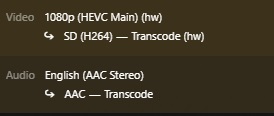
To test it, play a video and force a transcode by changing the quality to something lower. Then go to Activity → Dashboard. The video transcode should show the hardware (hw) tag.
If the Arc GPU doesn’t appear in Plex, check the device in this order:
- Proxmox host:
ls -l /dev/dri/ - Inside the LXC:
ls -l /dev/dri/ - Inside the Docker container:
docker exec -it <container-name> ls -l /dev/dri/
Note: Plex hardware-accelerated transcoding requires an active Plex Pass subscription.
Jellyfin
For Jellyfin, open the Administration Dashboard, then go to Playback → Transcoding.
- Under Hardware Acceleration, select Intel Quick Sync (QSV)
- Set the QSV device to the Intel Arc render device. Mine is
/dev/dri/renderD129
If the Arc GPU is the only Intel GPU in your system it will often be /dev/dri/renderD128. Again, use the device you identified earlier rather than assuming the number.
To test Jellyfin, play a video, lower the playback quality so it has to transcode, then open Playback Info. Look for Play method: Transcoding.
If transcoding fails completely, first confirm that the render device exists inside both the LXC and the Jellyfin Docker container. Jellyfin’s Intel hardware acceleration documentation also includes additional QSV/VA-API and driver checks if required:
Jellyfin Intel GPU hardware acceleration documentation

Verify the GPU is actually being used
If you want to confirm the GPU itself is doing the work, install intel-gpu-tools on the Proxmox host and run intel_gpu_top while a transcode is active. You should see activity on the Intel GPU’s video engines.
Archived method: manual UID/GID mapping
ARCHIVED – November 2025 method
The original version of this guide manually added
lxc.cgroup2.devices.allow, bind-mounted the DRI devices, created customlxc.idmaprules and edited/etc/subuidand/etc/subgid.That method worked, but it is no longer the recommended path for a current Proxmox install. Native LXC Device Passthrough creates the device node for the container and can assign its mode, UID and GID directly, so the old mapping instructions have been removed from the active guide to avoid unnecessary complexity.
If you’re deliberately running an older Proxmox release, use documentation appropriate for that version rather than copying the old mappings from this article.
Credit: Thanks to gnd-7000 in the comments for pointing out that Proxmox 9 no longer needs the old GID mapping method and that the GPU can be added directly through Resources → Device Passthrough. Much cleaner 🙂
References: Proxmox pct documentation · Jellyfin Intel GPU documentation · Plex Transcoder documentation
Great article, but in Proxmox 9 no gid mapping is needed, there is a menu item in Resources for Device passthrough
Thanks for this info, i’ll update and give credit 🙂