
Status: CURRENT
Last reviewed: 31 August 2026
Applies to: Single-site WordPress behind NginxThe original fix in this article is still the standard WordPress/Nginx permalink configuration: if a requested file or directory doesn’t exist, send the request to WordPress’s
index.phpfront controller instead of immediately returning a 404.
Back when I was very new to WordPress, my post URLs looked like this:
https://richay.au/?page_id=2They worked, but they’re ugly as shit and not exactly memorable.
WordPress lets you change this under:
Settings → Permalinks → Post name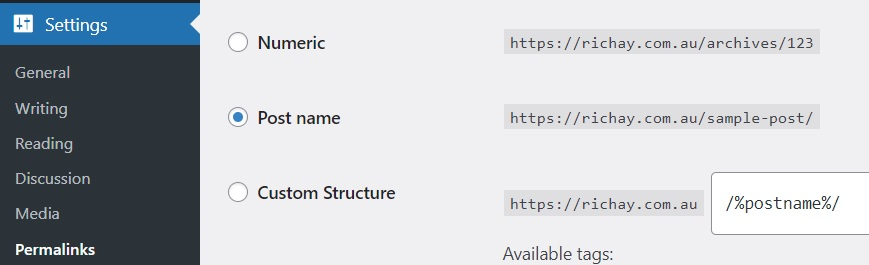
After changing from the default/plain URL structure to a nice permalink such as:
https://richay.au/my-post-name/the homepage still worked, but every post/page immediately returned:
404 Not FoundAt first it looks like WordPress broke the URLs. It didn’t. Nginx just wasn’t handing those nice-looking URLs back to WordPress.
Why this happens on Nginx
WordPress pretty permalinks rely on the web server routing requests that aren’t real files or directories into WordPress’s index.php.
On Apache this is commonly handled through .htaccess.
Nginx does not use WordPress’s .htaccess file. The equivalent routing needs to be configured in the Nginx server {} block.
If your configuration currently says:
location / {
    try_files $uri $uri/ =404;
}Nginx checks whether the URL points to a real file or directory and, if it doesn’t, immediately returns a 404.
For a WordPress URL like /wordpress-solving-404-error/, there usually isn’t a physical folder with that name. WordPress is supposed to interpret the URL and decide which post to show.
The fix
Change the WordPress site’s location / block to:
location / {
    try_files $uri $uri/ /index.php?$args;
}That one line is still the configuration shown in WordPress’s current Nginx documentation.
The logic is basically:
Request /some-post/
↓
Does a real file called /some-post/ exist?
↓ no
Does a real directory called /some-post/ exist?
↓ no
Send the request internally to /index.php
↓
WordPress works out which post/page you wanted :)Find the correct Nginx config first
My original article told everyone to edit:
sudo nano /etc/nginx/sites-enabled/defaultThat was correct for my Debian setup at the time, but it is not a universal Nginx path.
Your WordPress server block might instead be somewhere like:
/etc/nginx/sites-available/example.conf
/etc/nginx/conf.d/wordpress.conf
/etc/nginx/sites-enabled/example.confYou can search the active configuration for your site’s server_name:
sudo grep -R "server_name" /etc/nginx/sites-enabled /etc/nginx/conf.d 2>/dev/nullOr dump the full active Nginx configuration:
sudo nginx -T | lessFind the server {} block handling your WordPress hostname and edit that configuration.
If WordPress is running inside Docker, a VM appliance, a hosting panel or another managed stack, the relevant Nginx configuration may not live in Debian’s normal
sites-enableddirectory at all. Follow the request path and edit the Nginx instance that is actually serving WordPress — not whichever random Nginx config you found first.
Test before reloading Nginx
This was missing from my original guide and it’s important.
Before reloading Nginx, test the configuration:
sudo nginx -tYou want to see that the syntax is OK and the configuration test is successful.
Then reload Nginx without taking the whole server down:
sudo systemctl reload nginxNow refresh one of the previously broken WordPress post URLs.
If the try_files rule was the problem, your pretty permalinks should immediately start working.
Full minimal example
This is not a complete production Nginx configuration, but it shows where the permalink rule sits:
server {
listen 80;
server_name example.com www.example.com;
root /var/www/wordpress;
index index.php;
location / {
    try_files $uri $uri/ /index.php?$args;
}
location ~ \.php$ {
include fastcgi.conf;
fastcgi_pass unix:/run/php/php-fpm.sock;
}
}Don’t blindly paste that entire example. Your PHP-FPM socket, TLS configuration, document root and server name will almost certainly differ. The important permalink bit is the
location /block.
What if it still returns 404?
- Confirm you edited the Nginx
server {}block that actually handles the WordPress hostname. - Run
sudo nginx -Tand verify the active configuration contains the newtry_filesrule. - Run
sudo nginx -tbefore every reload. - Confirm the site’s
rootpoints at the directory containing WordPress’sindex.php. - Check that PHP-FPM itself is working. If even
index.phpfails, you have a different problem. - Go back to WordPress → Settings → Permalinks and confirm the permalink structure you actually want is selected.
If the homepage works, direct PHP works, but every pretty permalink returns Nginx’s own 404 page, the try_files rule is the first bloody thing I’d check.
What about .htaccess?
This catches a lot of people migrating WordPress guides from Apache.
You can regenerate .htaccess until your keyboard wears out — standalone Nginx isn’t reading it.
The permalink routing belongs in Nginx itself.
Old article verdict
Surprisingly, the actual fix from 2022 has aged perfectly:
location / {
    try_files $uri $uri/ /index.php?$args;
}The only bits that needed cleaning up were the old richay.com.au references, the assumption that every Debian Nginx site uses /etc/nginx/sites-enabled/default, and the lack of an nginx -t safety check.
Not bad for one of my first WordPress fixes. Apparently I occasionally knew what the fuck I was doing even back then 🙂